Crop product sets faster
Prepare consistent marketplace images without repeating the same crop by hand.
Batch Photo Resizer and marketplace crop tool for Shopify image prep — crop dozens of product photos at once, scale the shortest side to platform minimums, and export a ZIP. 100% in your browser, nothing uploaded.
54 images processed
2 hours saved
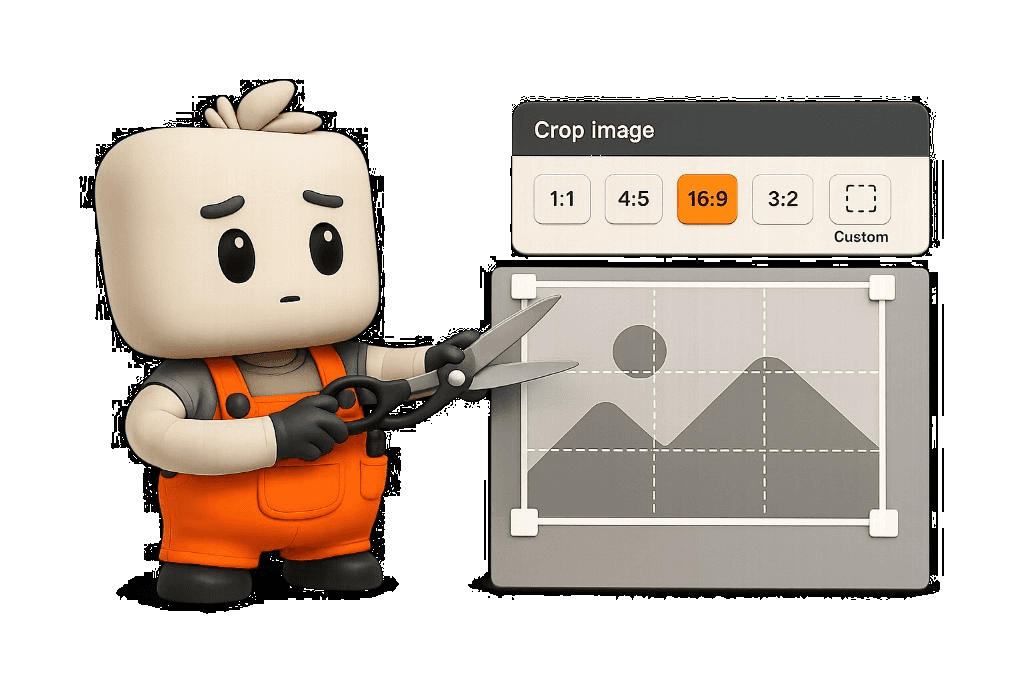
Manual cropping is the hidden tax on product launches. Agencies and sellers often repeat the same aspect ratio, framing, and export decisions across dozens of files before a collection can go live.
Bulk Image Crop is built for Shopify image prep and multi-channel listings. Drop a folder of product shots, choose ratio presets, and use uniform crop for consistency or individual crop for the few images that need manual framing.
Export size presets encode common marketplace expectations, and shortest-side scaling helps each finished crop meet platform minimums without sending originals to a cloud converter.
Each marketplace recommends different image dimensions. Bulk Image Crop scales the shortest side after cropping so the batch meets the target without manual math.
| Marketplace | Typical requirement | How Bulk Image Crop helps |
|---|---|---|
| Shopify | Product images work best at 2048px or larger on the shortest side. | Use the Shopify preset to scale cropped outputs when the source is smaller. |
| Etsy | Listing photos should be at least 2000px on the shortest side for clear detail. | Use the Etsy preset to apply shortest-side scaling across the batch. |
| Amazon | Main images commonly target 1600px or more for zoom. | Use a custom minimum shortest side after cropping. |
Cloud crop tools upload client assets to remote servers. LittleOrangeMan keeps pixels on the user's device: decode locally, compute crops in the interface, and hand heavy canvas encoding to Web Workers.
That architecture keeps scrolling and preview adjustments responsive while WebP, AVIF, or PNG outputs are encoded locally.
Lunch and Solutions buyers can install the PWA so the Bulk Image Crop shell, locale strings, mascot assets, and workers are available after the first visit.
Queued images stay in local browser storage during a session. Processing still runs in the browser when the app is installed.
Prepare consistent marketplace images without repeating the same crop by hand.
Images stay in the browser while the workbench handles the flow locally.
Use one focused workspace for repeatable e-commerce image prep.
No. Processing is designed to happen in the browser.
Yes. Upload many images at once and export every crop from one workspace.
Yes. The layout is built around product image preparation for e-commerce.
Uniform crop applies one shared framing template across every image in the batch — drag once and all thumbnails update. Individual crop lets you fine-tune a single image in the grid without changing the others, ideal when one SKU has a different composition.
Use uniform crop for consistent catalog grids, Shopify collections, and client deliverables where every product should share the same aspect ratio and framing. Switch to individual crop when a few outliers need manual adjustment after applying a uniform baseline.
WebP is the safer default for Shopify and most storefronts today — broad support and smaller files than PNG. AVIF delivers even smaller files at similar quality but has narrower support in older browsers and some marketplace upload flows. Use WebP for general Shopify image prep; choose AVIF when your channel accepts it and you want maximum compression.
Yes. Choose AVIF, WebP, or PNG as your output format before processing. All three are encoded locally in Web Workers with optimized quality settings.
Yes, for Lunch and Solutions buyers. Install the LittleOrangeMan PWA to pre-cache the Bulk Image Crop tool shell and workers for offline use. Images you queue during a session stay in local browser storage — nothing is uploaded when you process offline.